Notifications & Alerts
UptimeO can notify you when monitors fail, latency spikes, or agents misbehave. You configure
notifiers (Slack webhook or SMTP email) once, then attach them to specific monitors or agents.
How it works
-
1
Create a notifier in Admin → Notifiers.
-
2
Edit a monitor or agent and enable alerts.
-
3
Select which alert types should use each notifier.
When an alert condition is met, UptimeO sends a message through the selected notifier. A short cooldown prevents duplicate alerts for the same condition.
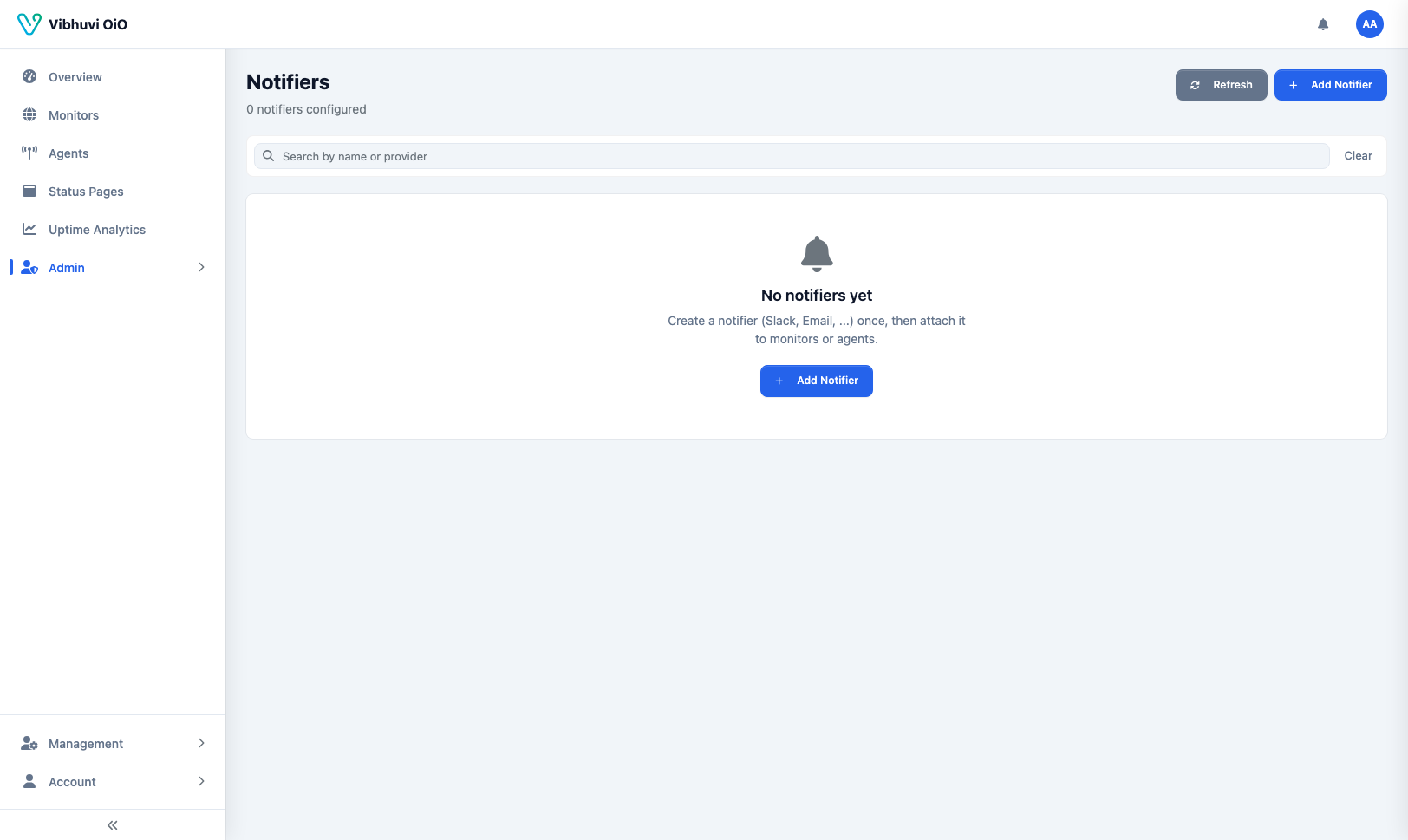
Create a notifier
-
1
Go to Admin → Notifiers.
-
2
Click New Notifier.
-
3
Enter a name (e.g., "Slack #alerts").
-
4
Choose the provider:
-
Slack — paste your Slack webhook URL.
-
Email — enter SMTP host, port, credentials, and recipient.
5. Save.
Enable alerts on a monitor
-
1
Go to Monitors and edit the monitor.
-
2
Turn on Enable alerts for this monitor.
-
3
In Alert Notifiers, select which notifier should receive each alert type:
-
Service disruption — monitor reports consecutive failures.
-
High latency — response time exceeds your thresholds.
4. Save.
Enable alerts on an agent
-
1
Go to Infrastructure → Agents and edit the agent.
-
2
Turn on Enable alerts for this agent.
-
3
Select which notifier should receive each alert type:
-
Agent down — agent stops sending heartbeats.
-
DNS failures — agent repeatedly fails DNS resolution.
4. Save.
Alert types
| Alert | Trigger | Typical use |
|---|
SERVICE_DISRUPTION | Consecutive heartbeat failures | URL is down or returning errors |
HIGH_LATENCY | Response time above warning/critical threshold | Slow but reachable endpoint |
AGENT_DOWN | No heartbeat from agent for a while | Agent host or network issue |
DNS_FAILURES | Repeated DNS lookup failures | Agent DNS misconfiguration |
Testing a notifier
Use the
Test button in the notifier list to send a sample message. This verifies your Slack webhook or SMTP credentials without waiting for a real outage.
Cooldown behavior
UptimeO suppresses repeat alerts for the same condition within a short window. This prevents a flood of messages when a monitor is flapping or an agent is restarting.
Troubleshooting
-
No alerts arriving — check the backend logs for
NotificationDispatcher entries.
-
Slack test fails — verify the webhook URL is active in your Slack workspace.
-
Email test fails — verify SMTP credentials and that the server allows connections from the UptimeO host.